How to set up Leads.su, Admitad and CityAds postbacks in a self-hosted tracker
Three networks, three levels of readiness: a preset, a preset through the integration and a custom mapping. We walk through each one as the tracker's code handles it and point out what to verify in the network's dashboard.
With a self-hosted tracker, the postback URL points to your own domain, not to a vendor's cloud. That is convenient, because lead data does not pass through someone else's servers, but it also means you set up the integration with the network yourself. Below is how to connect the three networks most often used in the finance and e-commerce verticals to inotrack: Leads.su, Admitad and CityAds. For each one, we cover what is already built into the tracker's code and what you will have to verify in the network's dashboard.
A fair warning up front: support for the three networks is at different levels of readiness. Leads.su has a preset in the panel's list. CityAds has a preset in the core, but it is not in the panel's dropdown. Admitad has no preset at all, so you connect it with a custom mapping. The article goes from the simplest case to the most involved. The panel UI is in Russian for now, so section and button names below are given in translation.
What all three have in common
The setup follows the same pattern:
- You add the network's parameter to the offer URL, and the tracker puts its
{clickid}into it. - You create a connection in the tracker: "Postbacks" → "Connections" → "Connect network". Each connection has its own token and its own endpoint,
https://<tracker-domain>/pb/<token>. - In the network's dashboard, you put that address into the postback URL together with the network's macros: clickid, status, amount, lead identifier.
Postback URLs are built from the primary tracker domain. It is shown in the section header, and you can change it right there.
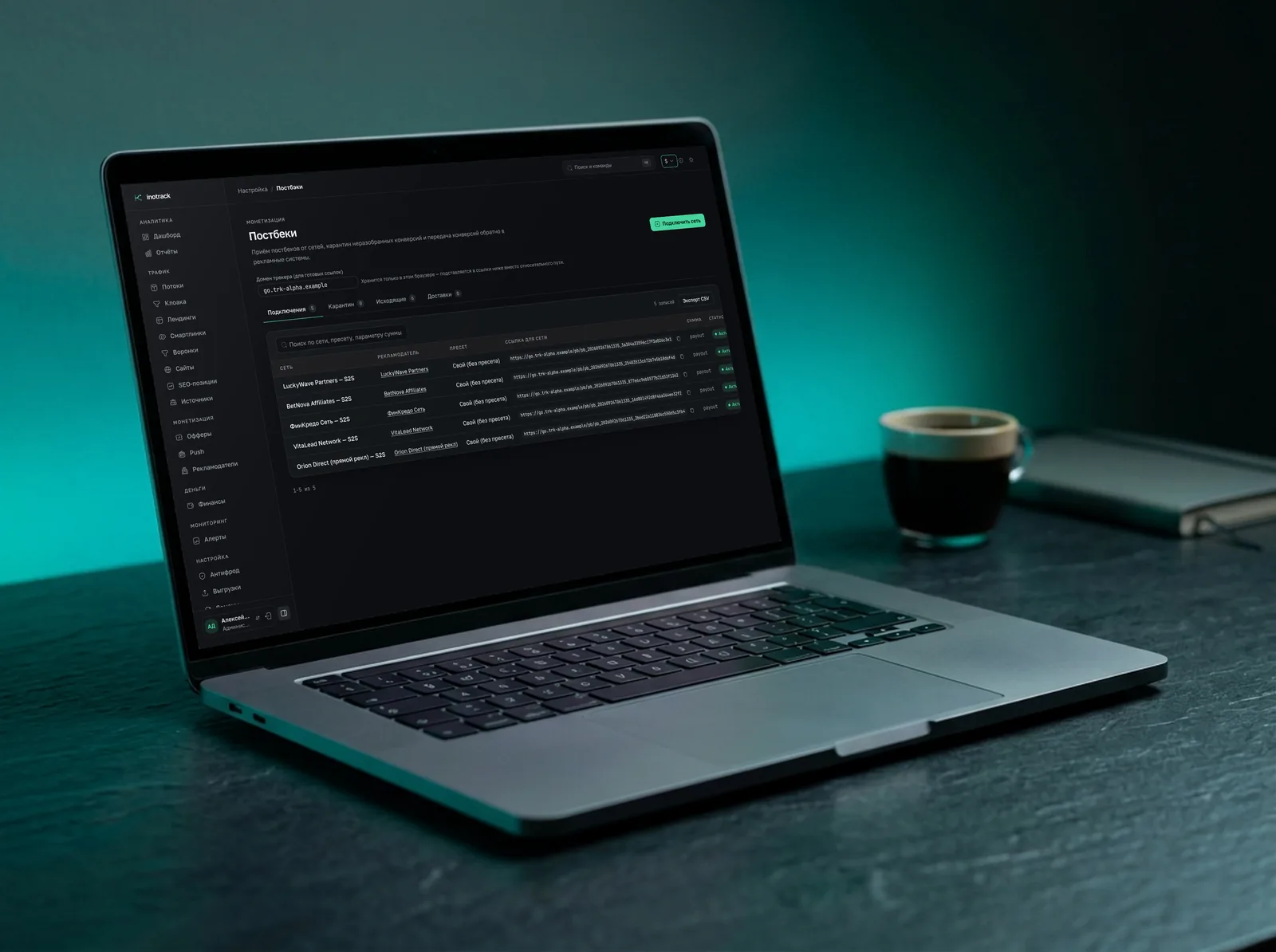
A connection's mapping answers four questions: which parameter carries the clickid, which the status, which the amount and which the lead identifier (txid). Plus a dictionary: which of the network's status values mean a lead, an approval and a rejection. A preset is simply a pre-filled mapping. You can edit any of its fields by hand.
An important caveat from the code: inotrack presets are a starting point, not a guarantee. They have not been checked line by line against each network's current documentation. So testing after setup is a must; more on that at the end.
Leads.su
Offer URL
Our clickid goes into the aff_sub1 parameter. If the offers were created by an import through the Leads.su API, the tracker adds aff_sub1={clickid} to the URLs itself. If the catalog was loaded from a file or the offer was created from the network's template, the template sets the parameter. For an offer created entirely by hand, add it yourself.
Connection in the tracker
In the connection form, choose the advertiser and the "Leads.su" preset. The preset fills in the fields:
| Mapping field | Parameter in our URL | Leads.su macro |
|---|---|---|
| clickid | click_id |
{aff_sub1} |
| status | status |
{status} |
| amount | sum |
{payout} |
| lead (txid) | action_id |
{action_id} |
Status dictionary: pending → lead, accepted → approval, declined → rejection. The default currency is rubles.
Postback in the dashboard
The dashboard section: "Tools" → "Postback notifications". The URL the panel builds:
https://<domain>/pb/<token>?click_id={aff_sub1}&status={status}&sum={payout}&action_id={action_id}
What to watch for
The action_id parameter is needed so that a status change for one lead updates one conversion and does not create a new one. If the dashboard does not put the identifier into this parameter, postbacks are still accepted, but API reconciliation (covered below) may fail to match postbacks by key. There is a separate switch in the integration settings for that case.
CityAds
Offer URL
In CityAds, the click ID travels in the xid parameter. When importing the catalog through the API, the tracker takes the network's link as is and builds the offer URL from it using a template: it adds xid={clickid}. In the integration settings you can also specify which of the tracker's sub parameters to pass into the sa, sa2…sa5 parameters, as comma-separated pairs, for example sa=sub1,sa2=sub2.
Connection in the tracker
The cityads preset exists in the core, but it is not in the form's dropdown at the moment. There are two ways to apply it.
Through the integration. If the CityAds advertiser was created by connecting the network in the "Integrations" section, the postback form applies the preset itself as soon as you choose that advertiser. In the list of connections it is shown with the code cityads.
By hand. Choose "Custom (no preset)" and fill in the mapping the same way the preset does:
| Mapping field | Parameter in our URL | CityAds macro |
|---|---|---|
| clickid | xid |
{xid} |
| status | status |
{status} |
| amount | payout |
{payout} |
| currency | payout_currency |
{payout_currency} |
| lead (txid) | cpl_id |
{cpl_id} |
Status dictionary: open → lead, approved → approval, rejected → rejection. The default currency is rubles, in case the network does not pass the currency macro.
Keep in mind: API reconciliation looks for the advertiser's connection with the cityads preset specifically. It will not find a connection with a custom mapping: the CityAds integration form has no field for choosing another preset, and it can only be set through the API. If you plan to use reconciliation, take the first route.
Postback in the dashboard
The section: "Tools" → "Conversion Postback", request type GET. The URL:
https://<domain>/pb/<token>?xid={xid}&status={status}&payout={payout}&cpl_id={cpl_id}&payout_currency={payout_currency}
The postback goes through CityAds moderation: the URL starts working only after approval.
What to watch for
The CityAds preset is explicitly marked in the code as not verified against the network's documentation. Before going live, compare it with the hint in the Conversion Postback form in the dashboard: the name of the URL parameter and the {xid} macro, the amount format and the currency code, the status values, and that {cpl_id} does not change when the lead's status changes.
Admitad
Offer URL
In Admitad affiliate links, your own identifier is passed in the subid parameter. The tracker does not append it to Admitad links itself, even if the programs were imported through the API. Add subid={clickid} to the offer URL by hand.
Connection in the tracker
There is no preset for Admitad. Choose "Custom (no preset)": the default fields are named clickid, status, sum and txid, and the status dictionary is empty. Then:
- Leave the parameter names as they are or rename them to your liking. These are names in your URL; the network knows nothing about them.
- Fill in the status dictionary: map the values Admitad puts into the status macro to lead, approval and rejection.
- Check that the amount parameter is set. A mapping with an empty amount field will not save without explicit confirmation: otherwise the payout would be recorded as zero.
- Point the transaction parameter at the Admitad action identifier. It stays the same for the whole life of the lead.
Take the postback macro names from Admitad's publisher help and put them into the URL https://<domain>/pb/<token>?….
If you plan to use API reconciliation
Reconciliation matches conversions by subid and the action identifier. For it to find your connection, specify the connection's preset in the Admitad integration settings. For a custom mapping that is custom. The adapter passes statuses as pending, approved and rejected, so add these three values to the connection's dictionary.
Offer import and reconciliation
All three networks can also be connected as integrations: "Integrations" → "Affiliate networks" → "Connection". This is a separate channel from postbacks: it goes through the network's API.
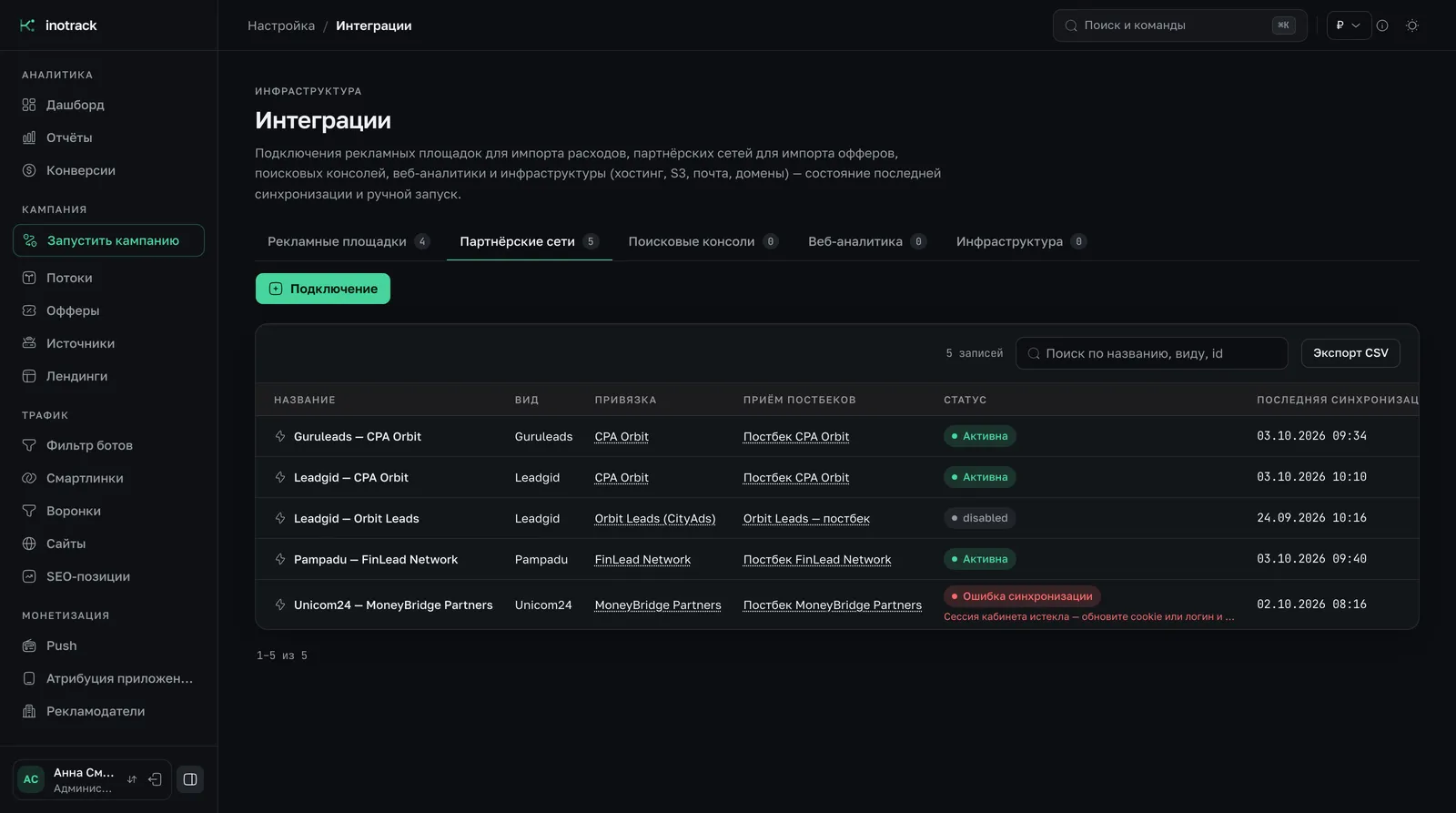
What you need to connect:
- Leads.su: an API token from the publisher dashboard ("Account" → "API access") and, optionally, a platform ID;
- CityAds: a request authorization token from the API section of the publisher dashboard;
- Admitad: a Client ID and Client secret ("Settings" → "API and apps") and an ad space ID.
Secrets are stored encrypted on your server and are not shown in the form after saving.
The integration does two things. The first is catalog import: offers, geos, payouts, and, when a payout changes, an entry in the payout history. The second is conversion reconciliation: once an hour the tracker fetches the network's conversions for the last few days and compares them with what arrived by postback. That is how lost postbacks are found. Details are in the article on conversion reconciliation via API, and a general overview is on the affiliate networks page (in Russian).
Checks after setup
- "Test" in the list of connections. The tracker sends itself a trial postback with the clickid of the last real click on the network's offers. It runs the mapping and the click lookup but writes nothing. The result shows the flow, the offer, the status and the amount.
- A test from the network's dashboard. The response should be
200. That means "accepted into the queue", not "conversion recorded": processing is asynchronous. The tracker reports only two problems synchronously: a missing clickid and an unrecognized status. In that case the response is200 quarantinedwith a reason. An unknown token gets a 404. - The first real lead. It should show up in the conversion feed, not on the "Quarantine" tab.
- A status change. When the network approves or rejects the lead, the status should change on the same conversion. A second conversion for the same lead is a sign that the txid is not set or keeps changing.
Common mistakes
- The text
{clickid}shows up in the network's dashboard. The offer URL was opened directly, not through the flow's tracking link. Macros are filled in only by a click through the tracker. - Postbacks arrive but there are no conversions. Open "Quarantine". The reason "click not found" usually means the network returns the wrong parameter, for example a sub parameter in place of the clickid.
- The reason is "Mapping error". The network sent a status that is not in the dictionary. Add the value to the connection's dictionary and reprocess the postbacks from quarantine. They are not lost.
- Conversions with a zero amount. The tracker did not read the amount. If the request has a parameter that looks like money and the mapping does not read it, the postback goes to quarantine with a separate reason. If there is no money in the request at all, the tracker flags an approved conversion with a zero payout.
- API reconciliation is silent. The advertiser has no postback connection with the preset that reconciliation looks for. For Leads.su and CityAds the connection must be created with the network's preset; for Admitad, check the preset field in the integration settings.
Summary
Leads.su is set up with a preset in a few minutes. CityAds is set up with a preset through the integration or by hand from the table above, and you must verify the macros in the dashboard. Admitad is set up with a custom mapping. The logic is the same in all three cases: the clickid goes into the offer URL and comes back in the postback, and the "Test" button shows the result before the first real lead.
Further reading:
- postbacks guide (in Russian): request formats, the status model and deduplication;
- macro reference (in Russian): every available macro;
- postbacks page (in Russian): everything the section can do.