Migrating from Keitaro in an evening: import, domains and postbacks
An evening of preparation and a few days of running two trackers side by side. An hour-by-hour plan: what the import does, what to set up by hand and when to shut the old tracker down.
People put off moving from one tracker to another for months. Not because it is hard, but because it is scary: traffic is running, money is coming in, and nobody wants to touch a setup that works. The good news is that a migration does not have to be a leap. You can split it into one evening of preparation and a few calm days of running both trackers side by side, with not a single click lost.
Below is a plan for such an evening when you move from Keitaro to inotrack: importing your settings with the wizard in the panel, domains and postbacks. What exactly the import does at the level of API requests is covered in the companion article on migrating from Keitaro (in Russian). This one is about the order of steps and the places where people usually stumble. The panel UI is in Russian for now, so section and button names below are given in translation.
The main principle: two trackers run at the same time
The import from Keitaro only reads: nothing changes in the old tracker. In inotrack, offers, landing pages and flows are created paused. So after the import you have two configured trackers, and traffic still goes through the old one.
From there you switch campaigns one at a time. If something breaks, you put the old link back into the ad. That is your safety net: there is no point after which you cannot roll back.
Two decisions follow from this principle, and it is best to make them before you start:
- inotrack needs its own domain. A domain points to one server. While Keitaro takes traffic on the old domain, inotrack lives on another one.
- The links in your ads will change. Every inotrack flow gets its own tracking link. Old Keitaro-format links will not work on the new tracker, even if you later point the old domain at it.
What to prepare in advance
- A server with inotrack installed. How to choose a server and what the installer asks is covered in the article on installing on your own VPS.
- A domain for clicks. Your own, with an A record pointing at the inotrack server, or a free one issued by the installer.
- A Keitaro API key. In Keitaro: "Maintenance" → "Users" → "API keys" (or the account menu → API keys).
- Keitaro reachable over HTTPS at a public address. The import does not connect to plain HTTP or internal addresses.
- Access to your network dashboards and ad accounts. Postbacks and links are changed there, not in the tracker.
19:00. Import
Open "Import" in the panel. The wizard has three steps.
Connection. Choose Keitaro as the tracker and enter the address of the Keitaro panel and the API key. The key is not stored anywhere: it lives in memory only for the duration of the preview and the job.
Preview. The tracker reads the account and shows how the import would go if you started it now. Nothing is written to the database at this step.
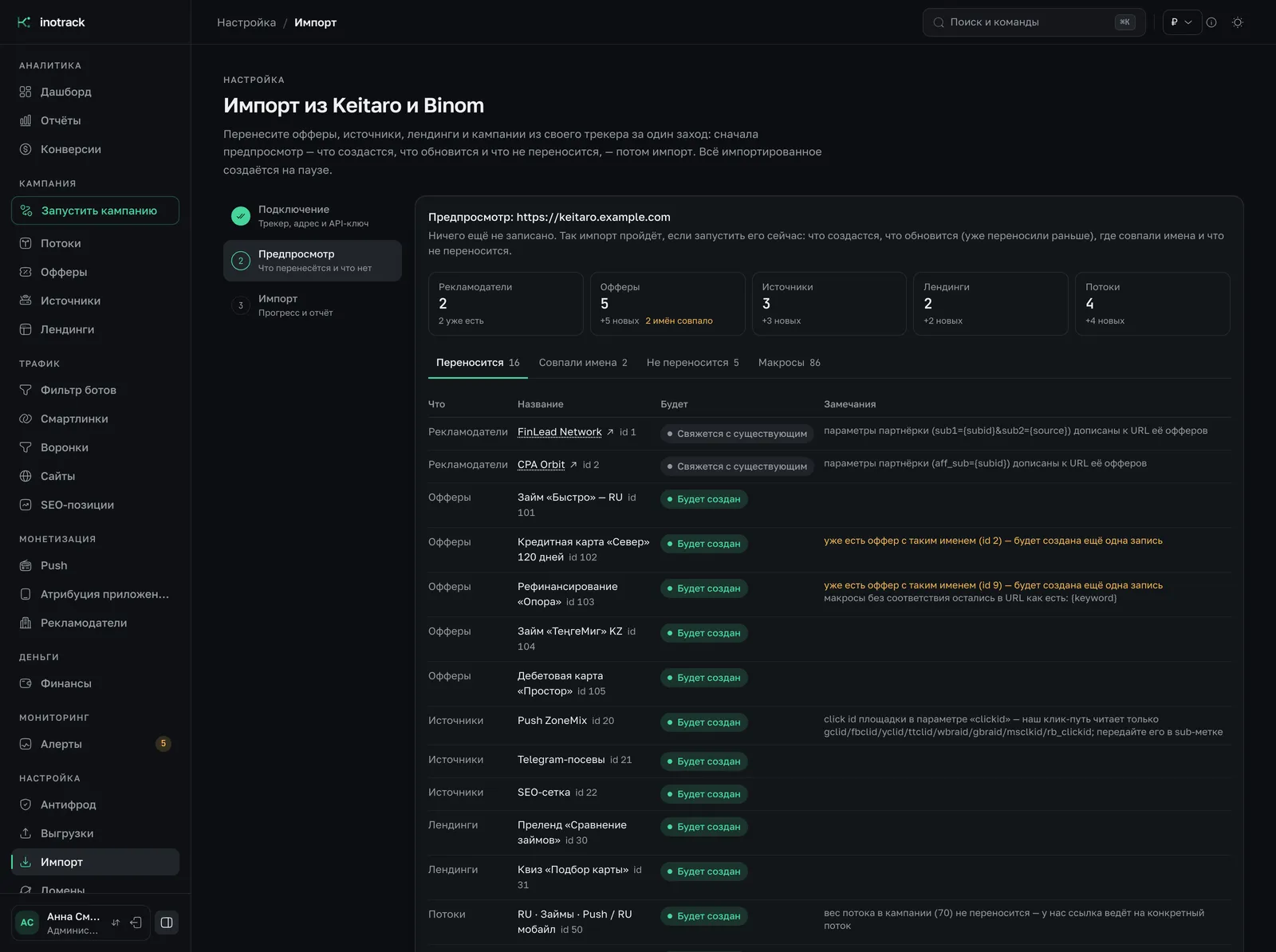
The report tabs:
- Migrated: what will be created or updated: affiliate networks, offers, sources, landing pages, campaigns and their flows;
- Names matched: inotrack already has a record with that name;
- Not migrated: with a reason for every entity;
- Macros: how Keitaro macros will be replaced with inotrack macros.
Do not skim past the "Not migrated" tab. Local landing pages and offers, flow triggers, filters combined with "OR": all of that stays in Keitaro only. Better to learn it now than on live traffic.
Import. The job runs on the server: you can close the page and come back via the same link, and the progress and the report will still be there. If the job is interrupted, whatever has been written is kept, and re-running it picks up where it left off without creating duplicates.
While the import is running, take care of the domains.
19:30. Domains
Open "Domains" → "Add domain". Point the domain's A record at the inotrack server. The tracker issues the certificate itself on the first request to the domain.
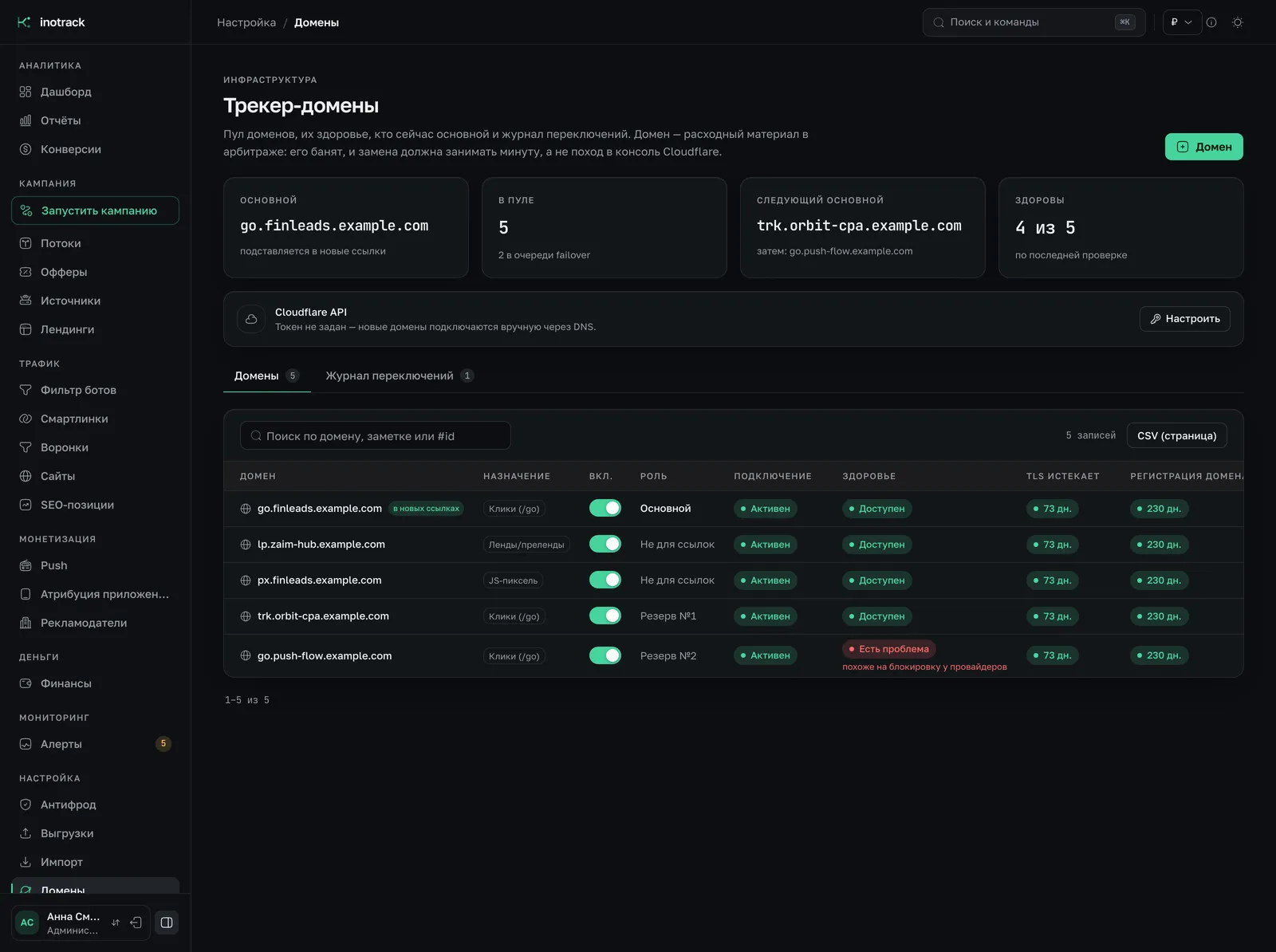
What to do right away:
- Set the primary domain. Flow tracking links and postback links are built from it.
- Click "Check now". The check shows whether it is really your tracker that answers on the domain. A domain that is not served by this server cannot be made primary.
- Add a backup domain. The tracker checks domains every five minutes. If the primary fails three checks in a row, a backup domain that has passed three checks takes its place. New links are then built from it.
There is one limitation of failover you need to understand: links already in use do not change. The switch saves new links, but in ads that carry the failed domain you will have to replace the link by hand. Still, you learn about the outage right away, not from a buyer half a day later.
If your domains live in Cloudflare, the tracker can create the zone and the record itself: you connect a token in the domains section for that. Details are on the tracker domains page (in Russian).
20:00. Going through the import report
Go back to the import. When it finishes, open the report: its links lead to the records that were created.
What to check:
- Offer URLs. The Keitaro click identifier
{subid}should have turned into{clickid}, and the sub ID macros{sub_id_1}…{sub_id_10}into{sub1}…{sub10}. Macros with no equivalent stay in the URL as is; they are listed on the "Macros" tab. The offer is paused, so a "raw" macro will not go out to the network unnoticed. - Flows. Every Keitaro flow has become a flow named "Campaign / Flow". The split of offers and landing pages by weight and the filters by geo, device, OS and language are carried over. Priorities between the flows of one campaign and fallback routes are not: you need to set them up again.
- Sources. The sub parameters and the link template are carried over together with the platform's external click ID parameter.
- Landing pages. Only landing pages with an external URL are carried over. Upload the ones that lived inside Keitaro as an archive. How hosting works is described on the landing pages and funnels page (in Russian).
20:30. Postbacks
Postback URLs live in the networks' dashboards, and the import cannot reach them. This is the only part of the migration that cannot be done inside the tracker.
For each network:
- In inotrack: "Postbacks" → "Connect network". Choose the advertiser (after the import, the Keitaro affiliate networks are already in the list) and the network preset, if there is one. No preset? Pick "Custom (no preset)" and map the fields by hand.
- Copy the connection URL. It already contains the parameter names the tracker reads.
- Click "Test": a trial postback runs through the mapping without writing anything.
Now the most important decision of the evening: how to add the URL in the network's dashboard.
The network allows several postbacks. Add the inotrack postback as a second one and leave the old one alone. Both URLs will receive all conversions. Each tracker will find its own clicks and set the rest aside as unmatched: in inotrack that is the "Quarantine" tab with the reason "click not found". This is expected and harmless, and such records can be rejected.
The network allows only one postback. Do not switch it today. Move the traffic first, and replace the URL only when most clicks go through inotrack. At that moment, conversions for the last Keitaro clicks will stop reaching Keitaro, so reconcile them against the network's report.
Setup for specific networks is in the article on Leads.su, Admitad and CityAds postbacks; formats and statuses are in the postbacks guide (in Russian).
21:00. Test click
Before you touch the ad accounts, check the whole chain on one flow.
- Enable one flow and one of its offers.
- Open the flow's tracking link in a browser.
- Make sure you were redirected to the offer and its URL has a value in place of
{clickid}. - Find the click in the flow report. Clicks are written in batches every one or two seconds, so refresh the page.
- Click "Test" on the postback connection. This time the test takes the clickid of that click and shows the flow, the offer and the amount.
If all five points check out, the setup works.
The following days: switching traffic
The evening is over. From here on, no rush.
- Switch one campaign at a time. Replace the link in the ad with the inotrack flow link that carries the source's parameter template. Start with a campaign you can afford to lose.
- Compare three numbers. Clicks in the ad account, clicks in the tracker, conversions in the network's dashboard. In the first days, do it for every campaign you have switched.
- Connect ad spend. Campaign costs are not carried over from Keitaro. Spend in inotrack comes from the ad account via API or is entered manually. How to set that up is in the article on ad spend from VK Ads and Yandex Direct.
- Catch up on changes with a repeat import. If new campaigns appeared in Keitaro during these days, run the import again. It updates what has already been carried over and creates no duplicates. Flows you have enabled will not be paused.
When to shut Keitaro down
Not on the day the last link is switched. Conversions for old clicks will still arrive: a lead submitted today may be approved in a week or a month. Until that window closes, the old tracker has to accept postbacks.
The order:
- The links are switched, and new clicks go through inotrack only.
- You wait for as long as your offers usually take to decide on a lead.
- You remove the Keitaro postback from the networks' dashboards.
- You export from Keitaro the reports you want to keep: statistics are not carried over to inotrack, and the new history starts with the first click.
- You shut the server down.
Summary
In one evening you can realistically do everything that does not depend on traffic: the import, the domains, the postbacks and a test click. Switching campaigns and waiting for old conversions takes days, but that is a background process with no risk. The full list of what is and is not carried over, with the macro table, is on the migration from Keitaro and Binom page; the first steps in the new panel are in the quickstart.